From contract email to a timeline you can work with
The contract arrives while you are between appointments. You know there are dates to organize, documents to review, and a client who will soon ask what happens next.
For a Florida real estate agent or transaction coordinator, that email is the beginning of a workflow. The useful next step is to give the file a clear starting point so you can return to it with the important information in front of you.
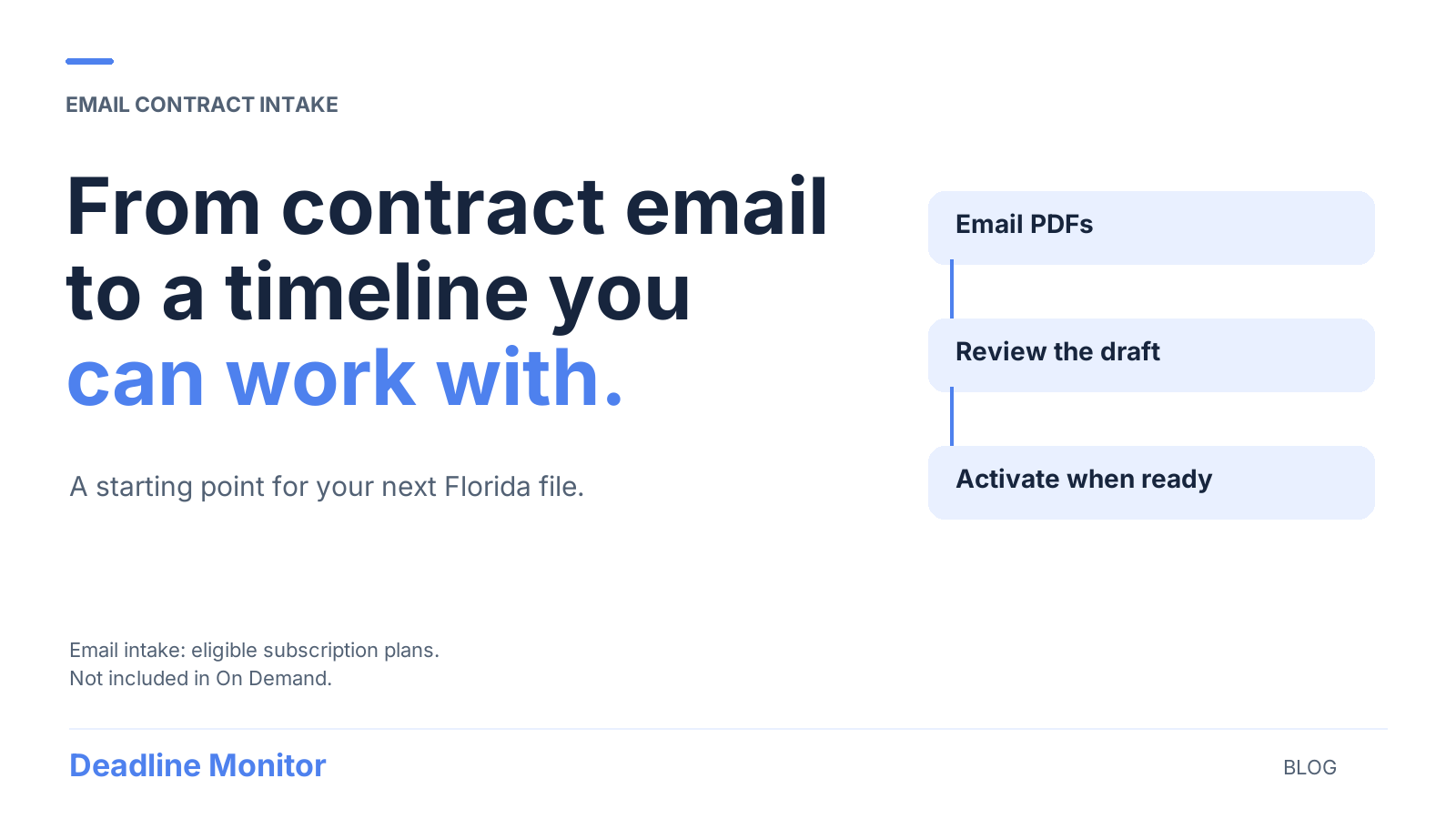
Email contract intake in Deadline Monitor helps with that first handoff. With an eligible subscription plan, you can send the transaction PDFs to Deadline Monitor and receive a preliminary timeline for review. The resulting transaction is a draft. You decide when it is ready to activate.
Start with the documents for one transaction
Gather the contract and the relevant riders and addenda for the transaction you are setting up. Keeping the current documents together helps you review the file as a whole instead of working from whichever attachment you opened first.
Use the intake instructions provided in your Deadline Monitor account. Keep each transaction’s documents together and avoid mixing unrelated files. If you are unsure which documents represent the current agreement, resolve that before relying on the resulting timeline.
The point is to start from the file you actually need to manage. A draft built from an incomplete packet still needs the missing context.
Email intake provides a starting point for review
Deadline Monitor uses the PDFs to help identify key dates and details, prepare a draft transaction, and return a preliminary timeline by email.
That gives you something concrete to work through. You can compare the draft with the documents, check the details, and make corrections where needed.
Sending the email does not mean the transaction is active or that reminders have begun. Receiving the preliminary timeline and activating the transaction are separate steps. If the documents cannot be processed, address the issue identified in the response before continuing. Do not assume a draft was created just because an email was sent.
Bring the contract context into the review
When you open the draft, work from the current transaction documents. Confirm the key dates and details, including any relevant riders or addenda, before moving forward.
A simple review can answer three operational questions:
- Does this draft belong to the right transaction and document set?
- Do the dates and details reflect the current agreement?
- Is the timeline ready for me to use and communicate?
This is also a useful moment to identify anything that needs clarification. The tool helps organize information; your professional review determines whether the file is ready. For questions about contract meaning or legal obligations, consult the appropriate qualified professional.
Activate when the timeline is ready
Once you have reviewed the details and made any needed corrections, you can move forward with activation under your plan.
An active transaction gives you a timeline for the milestones ahead and reminders to support your follow-up. Deadline Monitor also offers a shareable client timeline that clients can open without a login.
Use that shared view as a reference for the conversation. Instead of starting with a general status update, you can point to the next milestone, its confirmed date, and what needs to happen next. The timeline supports your guidance; it does not replace the discussion a client may need.
Keep the timeline connected to the current file
The workflow continues after setup. When a new document or confirmed change arrives, review what it affects and update the transaction details where needed.
Avoid assuming that a new email automatically updates an existing transaction. Start by checking the current file and the applicable instructions in the product. A short habit — asking what changed since your last review — helps keep the timeline relevant when you return to the transaction.
Choose the starting route that fits your work
Email intake is one option. Deadline Monitor also supports uploading a contract PDF or starting with manual entry.
If the PDF is already open on your computer, upload may be a convenient way to begin. If you prefer entering the transaction details yourself, manual entry is available. If the documents arrive by email and your subscription includes email intake, that can be a practical route into a draft.
Email contract intake is included in eligible subscription plans and is not included in On Demand. Review the current plan comparison before choosing a plan for that feature. Deadline Monitor is currently set up for Florida residential contracts for sale and purchase.
Give the next contract a clear starting point
You do not need to redesign your entire workflow to make the next file easier to return to. Start with the current documents, choose an intake route, review the resulting details, and activate when you are ready.
For a closer look at the product, see how Deadline Monitor works. To use email contract intake, compare the eligible subscription plans.